Material.Icons 2.0.16
Material.Icons
Parsed icons set from materialdesignicons.com and display control implementations for different GUI frameworks.
- All icons are always up-to-date because automatically updated every 6 hours.
- Small package size because icons are graphically encoded via SVG Path.
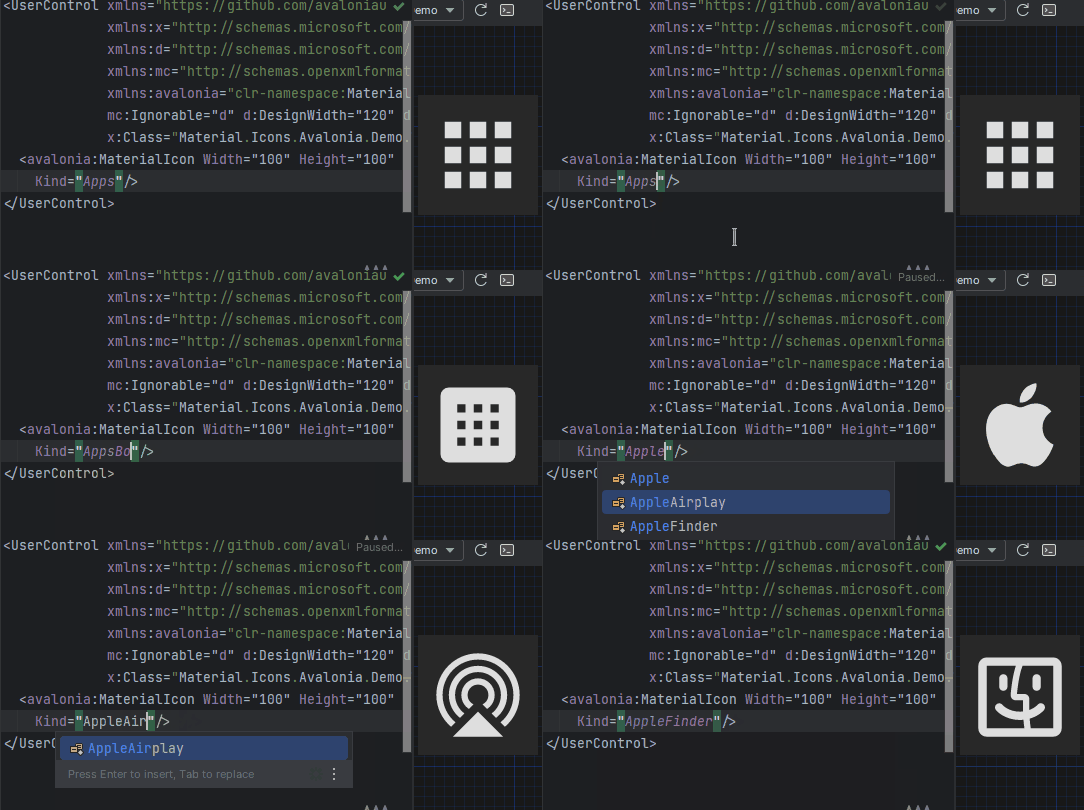
- Icon types are strongly typed enum, so your IDE will suggest available variants:
Structure
This project consists of 3 parts:
contains info about the icons
contains controls for AvaloniaUI
contains controls for WPF
FAQ - frequently asked questions
Avalonia
Getting started
- Install Material.Icons.Avalonia nuget package:
dotnet add package Material.Icons.Avalonia - Include styles in
App.xaml(for2.0.0version and higher):
For<Application xmlns:materialIcons="clr-namespace:Material.Icons.Avalonia;assembly=Material.Icons.Avalonia" ...> <Application.Styles> ... <materialIcons:MaterialIconStyles /> </Application.Styles> </Application>1.*.*:<Application ...> <Application.Styles> ... <StyleInclude Source="avares://Material.Icons.Avalonia/App.xaml" /> </Application.Styles> </Application>


Avalonia FuncUI (F#)
Getting started
- Install Material.Icons.Avalonia nuget package:
dotnet add package Material.Icons.Avalonia - Import styles in Application (or if you use XAML check instructions for plain Avalonia)
type App() = inherit Application() override this.Initialize() = .. this.Styles.Add(MaterialIconStyles(null)) .. - Create bindings for
MaterialIconnamespace Avalonia.FuncUI.DSL [<AutoOpen>] module MaterialIcon = open Material.Icons open Material.Icons.Avalonia open Avalonia.FuncUI.Types open Avalonia.FuncUI.Builder let create (attrs: IAttr<MaterialIcon> list): IView<MaterialIcon> = ViewBuilder.Create<MaterialIcon>(attrs) type MaterialIcon with static member kind<'t when 't :> MaterialIcon>(value: MaterialIconKind) : IAttr<'t> = AttrBuilder<'t>.CreateProperty<MaterialIconKind>(MaterialIcon.KindProperty, value, ValueNone) - Use
Button.create [
     Button.content (
         MaterialIcon.create [
             MaterialIcon.kind MaterialIconKind.Export
        ]
    )
]
WPF
Getting started
Install Material.Icons.WPF nuget package:
dotnet add package Material.Icons.WPF


Using
Add Material.Icons.WPF namespace to the root element of your file (your IDE can suggest it or do it automatically):
xmlns:materialIcons="clr-namespace:Material.Icons.WPF;assembly=Material.Icons.WPF"
Use MaterialIcon control:
<materialIcons:MaterialIcon Kind="Abacus" />
The Foreground property controls the color of the icon.
Also, there is MaterialIconExt which allows you to use is as the markup extension:
<Button Content="{materialIcons:MaterialIconExt Kind=Abacus}" />
Meta
Getting started
Install Material.Icons nuget package:
dotnet add package Material.Icons


Using
Icon types stored in Material.Icons.MaterialIconKind enum.
We can resolve an icon path by using Material.Icons.MaterialIconDataProvider.GetData().
FAQ
How to change icon color?
- Change
Foregroundproperty.
How to update icons?
- You can manually set
Material.Iconspackage version in your project file.
What about versioning policy?
- We use semver.
Any package with identical major and minor versions is compatible.
For example,1.0.0and1.0.1are compatible, but1.0.0and1.1.0might not be.
Showing the top 20 packages that depend on Material.Icons.
| Packages | Downloads |
|---|---|
|
Material.Icons.Avalonia
Avalonia control for display material icons from Material.Icons
|
2 |
|
Material.Icons.Avalonia
Avalonia control for display material icons from Material.Icons
|
1 |
.NET Standard 2.0
- No dependencies.
| Version | Downloads | Last updated |
|---|---|---|
| 3.0.0-preview6 | 1 | 2026/1/22 |
| 3.0.0-preview5 | 1 | 2026/1/22 |
| 3.0.0-preview4 | 1 | 2026/1/22 |
| 3.0.0-preview3.1 | 1 | 2026/1/25 |
| 3.0.0-preview1.1 | 1 | 2026/1/25 |
| 2.4.1 | 2 | 2026/1/15 |
| 2.4.0 | 1 | 2026/1/22 |
| 2.3.1 | 1 | 2026/1/22 |
| 2.3.0 | 1 | 2026/1/22 |
| 2.2.0 | 1 | 2026/1/22 |
| 2.1.12 | 1 | 2026/1/22 |
| 2.1.11 | 1 | 2026/1/22 |
| 2.1.10 | 1 | 2026/1/22 |
| 2.1.9 | 1 | 2026/1/22 |
| 2.1.8 | 0 | 2024/4/1 |
| 2.1.7 | 1 | 2026/1/22 |
| 2.1.6 | 1 | 2026/1/22 |
| 2.1.5 | 1 | 2026/1/22 |
| 2.1.4 | 1 | 2026/1/22 |
| 2.1.3 | 1 | 2026/1/22 |
| 2.1.2 | 1 | 2026/1/22 |
| 2.1.1 | 1 | 2026/1/22 |
| 2.1.0 | 1 | 2026/1/22 |
| 2.0.18 | 1 | 2026/1/22 |
| 2.0.17 | 1 | 2026/1/22 |
| 2.0.16 | 1 | 2026/1/22 |
| 2.0.15 | 1 | 2026/1/22 |
| 2.0.14 | 1 | 2026/1/22 |
| 2.0.13 | 1 | 2026/1/22 |
| 2.0.12 | 1 | 2026/1/22 |
| 2.0.11 | 1 | 2026/1/22 |
| 2.0.10 | 1 | 2026/1/22 |
| 2.0.9 | 1 | 2026/1/22 |
| 2.0.8 | 1 | 2026/1/22 |
| 2.0.7 | 1 | 2026/1/22 |
| 2.0.6 | 1 | 2026/1/22 |
| 2.0.5 | 1 | 2026/1/22 |
| 2.0.4 | 1 | 2026/1/22 |
| 2.0.3 | 1 | 2026/1/22 |
| 2.0.2 | 1 | 2026/1/22 |
| 2.0.1 | 1 | 2026/1/22 |
| 2.0.0 | 1 | 2026/1/22 |
| 2.0.0-preview1.3 | 1 | 2026/1/25 |
| 2.0.0-preview1.2 | 1 | 2026/1/25 |
| 2.0.0-preview1.1 | 1 | 2026/1/25 |
| 2.0.0-preview1 | 1 | 2026/1/22 |
| 1.1.35 | 1 | 2026/1/22 |
| 1.1.34 | 1 | 2026/1/22 |
| 1.1.33 | 1 | 2026/1/22 |
| 1.1.32 | 1 | 2026/1/22 |
| 1.1.31 | 1 | 2026/1/22 |
| 1.1.30 | 1 | 2026/1/22 |
| 1.1.29 | 1 | 2026/1/22 |
| 1.1.28 | 1 | 2026/1/22 |
| 1.1.27 | 1 | 2026/1/22 |
| 1.1.26 | 1 | 2026/1/22 |
| 1.1.25 | 1 | 2026/1/22 |
| 1.1.24 | 1 | 2026/1/22 |
| 1.1.23 | 1 | 2026/1/22 |
| 1.1.22 | 1 | 2026/1/22 |
| 1.1.21 | 1 | 2026/1/22 |
| 1.1.20 | 1 | 2026/1/22 |
| 1.1.19 | 1 | 2026/1/22 |
| 1.1.18 | 1 | 2026/1/22 |
| 1.1.17 | 1 | 2026/1/22 |
| 1.1.16 | 1 | 2026/1/22 |
| 1.1.15 | 1 | 2026/1/22 |
| 1.1.14 | 1 | 2026/1/22 |
| 1.1.13 | 1 | 2026/1/22 |
| 1.1.12 | 1 | 2026/1/22 |
| 1.1.11 | 1 | 2026/1/22 |
| 1.1.10 | 1 | 2026/1/22 |
| 1.1.9 | 1 | 2026/1/22 |
| 1.1.8 | 1 | 2026/1/22 |
| 1.1.7 | 1 | 2026/1/22 |
| 1.1.6 | 1 | 2026/1/22 |
| 1.1.5 | 1 | 2026/1/22 |
| 1.1.4 | 1 | 2026/1/22 |
| 1.1.3 | 1 | 2026/1/22 |
| 1.1.2 | 1 | 2026/1/22 |
| 1.1.1 | 1 | 2026/1/22 |
| 1.1.0 | 1 | 2026/1/22 |
| 1.0.105 | 1 | 2026/1/22 |
| 1.0.104 | 1 | 2026/1/22 |
| 1.0.103 | 1 | 2026/1/22 |
| 1.0.102 | 1 | 2026/1/22 |
| 1.0.101 | 1 | 2026/1/22 |
| 1.0.100 | 1 | 2026/1/22 |
| 1.0.99 | 1 | 2026/1/22 |
| 1.0.98 | 1 | 2026/1/22 |
| 1.0.97 | 1 | 2026/1/22 |
| 1.0.96 | 1 | 2026/1/22 |
| 1.0.95 | 1 | 2026/1/22 |
| 1.0.94 | 1 | 2026/1/22 |
| 1.0.93 | 1 | 2026/1/22 |
| 1.0.92 | 1 | 2026/1/22 |
| 1.0.91 | 1 | 2026/1/22 |
| 1.0.90 | 1 | 2026/1/22 |
| 1.0.89 | 1 | 2026/1/22 |
| 1.0.88 | 1 | 2026/1/22 |
| 1.0.87 | 1 | 2026/1/22 |
| 1.0.86 | 1 | 2026/1/22 |
| 1.0.85 | 1 | 2026/1/22 |
| 1.0.84 | 1 | 2026/1/22 |
| 1.0.83 | 1 | 2026/1/22 |
| 1.0.82 | 1 | 2026/1/22 |
| 1.0.76 | 1 | 2026/1/22 |
| 1.0.75 | 1 | 2026/1/22 |
| 1.0.74 | 1 | 2026/1/22 |
| 1.0.73 | 1 | 2026/1/22 |
| 1.0.72 | 1 | 2026/1/22 |
| 1.0.71 | 1 | 2026/1/22 |
| 1.0.70 | 1 | 2026/1/22 |
| 1.0.69 | 1 | 2026/1/22 |
| 1.0.68 | 1 | 2026/1/22 |
| 1.0.67 | 1 | 2026/1/22 |
| 1.0.66 | 1 | 2026/1/22 |
| 1.0.65 | 1 | 2026/1/22 |
| 1.0.64 | 1 | 2026/1/22 |
| 1.0.63 | 1 | 2026/1/22 |
| 1.0.62 | 1 | 2026/1/22 |
| 1.0.61 | 1 | 2026/1/22 |
| 1.0.60 | 1 | 2026/1/22 |
| 1.0.59 | 1 | 2026/1/22 |
| 1.0.58 | 1 | 2026/1/22 |
| 1.0.57 | 1 | 2026/1/22 |
| 1.0.56 | 1 | 2026/1/22 |
| 1.0.55 | 1 | 2026/1/22 |
| 1.0.54 | 1 | 2026/1/22 |
| 1.0.53 | 1 | 2026/1/22 |
| 1.0.52 | 1 | 2026/1/22 |
| 1.0.51 | 1 | 2026/1/22 |
| 1.0.50 | 1 | 2026/1/22 |
| 1.0.49 | 1 | 2026/1/22 |
| 1.0.48 | 1 | 2026/1/22 |
| 1.0.47 | 1 | 2026/1/22 |
| 1.0.46 | 1 | 2026/1/22 |
| 1.0.45 | 1 | 2026/1/22 |
| 1.0.44 | 1 | 2026/1/22 |
| 1.0.43 | 1 | 2026/1/22 |
| 1.0.42 | 1 | 2026/1/22 |
| 1.0.41 | 1 | 2026/1/22 |
| 1.0.40 | 1 | 2026/1/22 |
| 1.0.39 | 1 | 2026/1/22 |
| 1.0.38 | 1 | 2026/1/22 |
| 1.0.37 | 1 | 2026/1/22 |
| 1.0.36 | 1 | 2026/1/22 |
| 1.0.35 | 1 | 2026/1/22 |
| 1.0.34 | 1 | 2026/1/22 |
| 1.0.33 | 1 | 2026/1/22 |
| 1.0.32 | 1 | 2026/1/22 |
| 1.0.31 | 1 | 2026/1/22 |
| 1.0.30 | 1 | 2026/1/22 |
| 1.0.29 | 1 | 2026/1/22 |
| 1.0.28 | 1 | 2026/1/22 |
| 1.0.27 | 1 | 2026/1/22 |
| 1.0.26 | 1 | 2026/1/22 |
| 1.0.25 | 1 | 2026/1/22 |
| 1.0.24 | 1 | 2026/1/22 |
| 1.0.23 | 1 | 2026/1/22 |
| 1.0.22 | 1 | 2026/1/22 |
| 1.0.21 | 1 | 2026/1/22 |
| 1.0.20 | 1 | 2026/1/22 |
| 1.0.19 | 1 | 2026/1/22 |
| 1.0.18 | 1 | 2026/1/22 |
| 1.0.17 | 1 | 2026/1/22 |
| 1.0.16 | 1 | 2026/1/22 |
| 1.0.15 | 1 | 2026/1/22 |
| 1.0.14 | 1 | 2026/1/22 |
| 1.0.13 | 1 | 2026/1/22 |
| 1.0.12 | 1 | 2026/1/22 |
| 1.0.11 | 1 | 2026/1/22 |
| 1.0.10 | 1 | 2026/1/22 |
| 1.0.9 | 1 | 2026/1/22 |
| 1.0.8 | 1 | 2026/1/22 |
| 1.0.7 | 1 | 2026/1/22 |
| 1.0.6 | 1 | 2026/1/22 |
| 1.0.5 | 1 | 2026/1/22 |
| 1.0.4 | 1 | 2026/1/22 |
| 1.0.3 | 1 | 2026/1/22 |
| 1.0.2 | 1 | 2026/1/22 |
| 1.0.1 | 1 | 2026/1/22 |
| 1.0.0 | 1 | 2026/1/22 |